
Yandex Browser
Screenshots


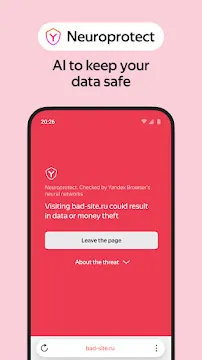


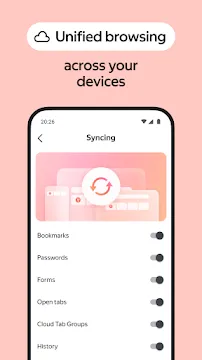

Yandex Browser for Android offers a fast and highly customizable mobile experience. It combines a clean interface with powerful tools to help you navigate the web efficiently. This browser focuses on speed and user comfort by integrating smart features directly into the search bar.
You can enjoy a personalized feed of news and videos tailored to your interests. The app also prioritizes security to keep your mobile browsing safe from common online threats. Whether you want to save data or block annoying ads, this browser provides the flexibility you need.
How to Download and Install Yandex Browser APK For Android
Are you looking for a fast and secure web browser? Yandex Browser is a solid choice. It offers a clean interface and useful features. You can install it easily on your Android device.
This guide walks you through the process step by step. We will focus on using the APK file. Let’s get started.
What is an APK?
An APK is an application package file. It is the raw format Android uses to install apps. Normally, you download apps from the Google Play Store. However, sometimes you might want to install an app directly.
This method gives you more control. It also allows you to install specific versions.
Why Choose Yandex Browser?
Yandex Browser is known for its speed. It also includes a built-in security system. This system protects you from dangerous websites. Additionally, it has a “Turbo” mode. This mode speeds up browsing on slow connections.
The browser also syncs with your desktop. Therefore, your bookmarks and passwords travel with you.
Preparing Your Android Device
Before you begin, you must adjust one setting. Android blocks unknown apps by default. You need to allow installations from your file manager.
Follow these steps:
- Open the Settings app on your device.
- Scroll down and tap on Security or Privacy.
- Look for the option labeled Install unknown apps.
- Select your preferred file manager or browser app.
- Toggle the switch to Allow from this source.
This permission is crucial. It lets you install the APK file you download.
Step 1: Download the APK File
First, you need to get the correct file. Open your web browser on your Android phone.
- Visit Filetomob.com.
- Search for Yandex Browser APK Download.
- Navigate to the Yandex Browser page.
- Look for the Android download link.
- Tap the download APK button.
- The file will start downloading. You will usually see a progress bar in your notification panel. Wait for the download to finish completely.
Important tip: Always ensure the file name ends with .apk. This confirms you have the correct file type.
Step 2: Locate the Downloaded File
Once the download finishes, you need to find the file.
- Open the Downloads app on your phone.
- Alternatively, open your File Manager.
- Look for a folder named Downloads.
You should see the Yandex Browser APK file there. It will likely be at the top of the list.
Step 3: Install the APK
Now you are ready for the installation.
- Tap on the APK file.
- A pop-up window will appear.
- Review the permissions the app requests.
- Tap the Install button.
The installation process takes only a few seconds. Once it finishes, you will see an Open button.
Step 4: Launch and Set Up
Tap Open to launch Yandex Browser. The first launch may require a few quick steps.
- Choose your default search engine.
- Sign in to your Yandex account for syncing.
- Or simply tap Skip to start browsing immediately.
You can now enjoy a fast and secure browsing experience.
Troubleshooting Common Issues
Sometimes, installation does not go smoothly. Do not worry. Here are common issues and quick fixes.
“App not installed” Error
This error usually means there is a conflict.
- Uninstall any previous version of Yandex Browser first.
- Then try installing the new APK again.
“Blocked by Play Protect”
Google Play Protect may show a warning.
This is a standard security measure.
- Tap Install anyway if you trust the source.
- You can also disable Play Protect temporarily in the Google Play Store settings.
Insufficient Storage Space
Your device needs enough free space.
- Check your storage in the Settings menu.
- Delete old photos, videos, or unused apps.
- Then retry the installation.
Benefits of Using the APK Method
Why use an APK instead of the Play Store? There are several good reasons.
- Early access: Get new features before they roll out widely.
- Regional availability: Download the app if it is not available in your country.
- Version control: Stick to a specific version you prefer.
This method gives you flexibility.
Keeping Your App Updated
After installation, you have two options for updates. You can download a new APK manually each time. Alternatively, the app may notify you when an update is ready.
If you want automatic updates, return to the Google Play Store later. Once the app is installed, the Play Store often recognizes it. You can then enable auto-updates there.
Final Thoughts
Installing Yandex Browser via APK is a simple process. You just need to enable one setting, download the file, and tap install. The whole process takes less than two minutes.
Now you have a powerful browser ready to go. Enjoy faster page loads and strong security on your Android device.
Yandex Browser for Android: Key Features That Set It Apart
Choosing a mobile browser often feels like a trade-off between speed and features. While Google Chrome is the standard for many, Yandex Browser for Android offers several unique tools that many users miss.
If you want more control over your mobile browsing, here are the key features that set Yandex apart.
Built-in Ad Blocker
Unlike the standard Android version of Chrome, Yandex includes a native ad blocker. You can enable this directly in the settings without downloading extra software.
- What it does: It effectively blocks intrusive pop-ups and large banners that clutter your screen.
- The limit: It is great for general browsing, but it may not be as aggressive as dedicated apps like AdGuard.
- The benefit: You get a cleaner reading experience and faster page loads immediately after installation.
Turbo Mode
Slow internet connections can make browsing frustrating. Yandex solves this with Turbo Mode, a feature designed to save both time and data.
- How it works: When your connection slows down, Yandex compresses website data on its own servers before sending it to your phone.
- Best use case: This is perfect for users on limited data plans or those stuck on slow 3G and 4G networks.
- Efficiency: It helps pages load much faster when your signal is weak.
Voice Search with Alice
Yandex features a built-in AI assistant named Alice. She is more than just a search tool; she is a fully integrated voice assistant.
- Deep Integration: While Google Assistant lives across your whole phone, Alice is optimized specifically for the browser environment.
- Capabilities: You can ask Alice to find information, check the weather, or navigate websites entirely hands-free.
- Personality: She provides a more conversational experience compared to basic voice-to-text tools.
Support for Chrome Extensions
This is perhaps the biggest reason to switch. Most mobile browsers do not allow you to use desktop extensions, but Yandex does.
- Desktop Power on Mobile: You can install many of your favorite desktop Chrome extensions, such as Dark Reader, Grammarly, or various password managers.
- How to use: You can access the “Extensions” catalog through the browser menu.
- Experimental but effective: While this feature is technically experimental, it works smoothly for many popular tools, giving you a desktop-level experience on your phone.
Protect Security System
Security is a major focus for Yandex. The browser uses an active security system called Protect to keep your data safe in real-time.
- Fraud Detection: It automatically warns you if you click on a fraudulent or “phishing” link.
- File Safety: The system scans files for infections before you finish downloading them.
- Wi-Fi Protection: If you connect to an insecure public Wi-Fi network, Protect encrypts your data to prevent hackers from intercepting your personal information.
The AI Advantage: Meet Alice
Yandex integrates its powerful Alice AI directly into the browsing experience. This assistant goes far beyond simple voice commands.
- Summarizing Long Articles: Don’t have time to read a 2,000-word post? Alice can instantly summarize long articles into a few clear bullet points. This helps you get the “too long; didn’t read” (TL;DR) version in seconds.
- Real-Time Video Translation: Yandex features a game-changing tool for YouTube. It can translate foreign videos in real-time.
- Authentic Dubbing: Instead of just showing subtitles, the AI provides “authentic dubbing.” It creates a natural-sounding voiceover that matches the tone and rhythm of the original speaker, currently supporting several major languages.
Desktop-Level Customization
Most mobile browsers are rigid, but Yandex treats your phone like a powerful workstation.
- Chrome Web Store and Opera Add-ons: This is a huge selling point. Yandex supports extensions from both the Chrome Web Store and the Opera Add-ons library. You can use desktop tools like Dark Reader or password managers directly on your Android device.
- The “Table” (Speed Dial): You can fully manage your “Table,” which is Yandex’s version of a Speed Dial. It lets you organize your most-visited sites exactly how you want them.
- Custom Backgrounds: You aren’t stuck with a plain white screen. You can choose from a vast library of stunning wallpapers or use your own photos to personalize your start page.
The “Protect” Security System
Safety is built into the core of the browser through the Protect system. It acts as an active shield while you surf the web.
- Wi-Fi Security: When you use public Wi-Fi in cafes or airports, Protect automatically encrypts your data. This prevents hackers on the same network from stealing your information.
- Credit Card Protection: The browser includes a special “protected mode” for banking. It warns you if you are about to enter card details on a suspicious or fraudulent website.
- Smart Ad-Blocking Levels: You can choose your level of comfort with ads. You can toggle between blocking “Offensive” ads (like shocking imagery) or “Intrusive” ads (like pop-ups that cover the whole screen). This gives you total control over what you see.
Yandex Browser for Android: Performance & Optimization
Getting the most out of your mobile browsing requires a mix of speed and simplicity. The Yandex Browser for Android delivers both by focusing on clever data handling and user-focused features.
Here is how you can optimize your experience and enjoy a faster, cleaner mobile web.
Turbo Mode
Mobile data speeds fluctuate constantly. Whether you are on a patchy 4G signal or a congested 5G network, Turbo Mode acts as a powerful optimizer.
- Data Compression: Yandex servers compress webpages before they reach your phone. This reduces the amount of data your device needs to download.
- Faster Loading: Because the files are smaller, pages pop up much quicker on slow connections.
- Cost Savings: Lower data usage helps you stay within your monthly mobile plan limits.
When your connection drops, Turbo Mode engages automatically. It ensures that a weak signal never stops your workflow.
Reader Mode
Cluttered websites often distract readers and slow down mobile hardware. Reader Mode strips away the noise to highlight what matters most: the content.
How It Works
By removing sidebars, flashing ads, and unnecessary scripts, the browser creates a “clean slate” for your eyes. This feature is particularly useful for long-form articles or technical guides.
The Benefits
- Improved Legibility: You can adjust font sizes and background colors to suit your vision.
- Faster Rendering: Without heavy ads to process, your phone’s CPU stays cool and responsive.
- Better Retention: A distraction-free environment helps you focus on the information you actually need.
Seamless Sync: From Desktop to Android
Efficiency relies on continuity. Yandex Browser bridges the gap between your computer and your smartphone through advanced Sync Capabilities.
- Shared Tabs: You can start reading an article on your Windows or Mac laptop and finish it on your phone during your commute.
- Universal Bookmarks: Your saved sites follow you everywhere, organized exactly how you left them.
- Password Management: Log in to your favorite services instantly across all devices without typing long credentials.
This synchronization eliminates the need to email links to yourself. It creates a unified digital workspace that moves with you.
Speed: Chromium Power vs. Custom Optimization
Because Yandex uses the Blink rendering engine, its core speed is virtually identical to Chrome. In standard 2026 benchmarks like Speedometer, Yandex consistently ranks as a “Good” to “Excellent” performer.
- Rendering Consistency: You can expect smooth scrolling and fast page loads that match the industry leaders.
- The “Yandex Layer”: While the engine is the same, Yandex often feels different because of its interface. Features like the bottom address bar and Alice AI are integrated directly into the frame, which can occasionally add a slight “weight” compared to a bare-bones browser.
- Perceived Speed: Yandex prioritizes loading the main text and interactive elements of a page first. This makes the browser feel fast even if heavy background ads are still loading.
RAM Management: Budget vs. Flagship
Memory handling is where Yandex shows its versatility. It uses Adaptive Resource Throttling to change its behavior based on the hardware in your hand.
1. Budget Android Devices (2GB – 4GB RAM)
On entry-level phones, every megabyte of RAM counts. Yandex acknowledges this by being more aggressive with its background processes.
- Tab Suspending: The browser quickly “freezes” tabs you aren’t looking at to free up memory for your active page.
- Reduced Animations: It may simplify transition effects to prevent the UI from lagging.
- Aggressive Garbage Collection: The system clears out temporary data more frequently to keep the phone from overheating or crashing.
2. Flagship Devices (8GB – 16GB+ RAM)
On high-end hardware,Yandex Browser shifts gears to provide a “no-compromise” experience.
- Instant Switching: It keeps many more tabs active in the background. When you switch back to an old tab, it loads instantly without a refresh.
- Predictive Loading: With extra RAM to spare, Yandex can pre-load links it thinks you might click next.
- AI Integration: Flagships have the memory to run Alice AI and YandexGPT features smoothly alongside multiple heavy websites.
Power Saving Mode: Smart Energy Management
When your battery runs low, every milliampere counts. This mode optimizes how the browser uses your phone’s processor and screen to reduce energy consumption.
- Restricts Background Activity: The browser limits the data processing of tabs you aren’t currently looking at. This stops hidden pages from draining your power.
- Optimizes Video Playback: It switches to hardware-accelerated video codecs. This uses less CPU power when you watch clips or movies.
- Reduces Visual Demands: The browser simplifies animations and lowers the frame rate of webpages. These small changes lead to significant battery savings.
By default, this mode activates automatically when your battery hits 20%. You can also turn it on manually in the settings to preserve power throughout the day.
Understanding Yandex Browser’s “Protect” System
Staying safe online shouldn’t be complicated. The Yandex Browser for Android features a built-in security suite called Protect. This system works quietly in the background to shield your data and your device from digital threats.
Active Protection: Your Digital Shield
The Active Protection component acts as a real-time security guard. It monitors your browsing activity to stop threats before they reach your phone.
- File Scanning: Every time you download a file, Protect scans it for viruses. This prevents malicious software from infecting your Android system.
- Phishing Block: Phishing sites try to steal your passwords or credit card numbers by mimicking real websites. Yandex Browser identifies these fraudulent pages and blocks them instantly.
- Safe Surfing: The browser cross-references the sites you visit with a massive database of known dangerous URLs.
Wi-Fi Security: Safety on the Go
Public Wi-Fi at cafes or airports is convenient but often risky. Hackers can sometimes “sniff” or intercept data on these unsecured networks.
- Automatic Encryption: When you connect to an open hotspot, Yandex Browser automatically encrypts your data traffic.
- Privacy Tunnel: This encryption turns your information into a code that is unreadable to outsiders.
- Peace of Mind: You can check your bank balance or log into social media without worrying about nearby prying eyes.
Incognito Mode: Browsing Without a Trace
Incognito Mode offers a private space for your browsing. However, it is important to understand exactly what this mode does for your privacy.
What Incognito Saves:
- Downloaded Files: Any files you intentionally save to your phone stay there.
- Bookmarks: If you bookmark a site while in private mode, it remains in your library.
What Incognito Deletes:
- Search History: The browser forgets your search queries the moment you close the tab.
- Cookies: Websites cannot track your return visits because your session data is wiped.
- Form Data: The browser will not remember your login names or addresses for future use.
Why Use These Features?
Using these tools together creates a layered defense. While Active Protection stops external attacks, Incognito Mode manages your local footprint. Furthermore, the Wi-Fi security layer ensures that your physical location doesn’t compromise your digital safety. By using Yandex Browser’s Protect system, you take control of your mobile privacy with very little effort.
Yandex Browser Customization & User Experience
The Yandex Browser for Android transforms your smartphone into a highly personal digital assistant. It blends speed with a deep level of visual control. Below, we explore how its unique features improve your daily browsing.
SmartBox: The Evolution of Search
The SmartBox serves as the brain of the browser. It does more than just find websites; it anticipates your needs.
- Intelligent Suggestions: As you type, the browser predicts your destination. It saves time by suggesting popular queries and specific URLs instantly.
- Neuro Search: This advanced feature uses neural networks to scan the web for you. Instead of clicking through ten different links, you get a single, cohesive answer pulled from multiple reliable sources.
- Direct Actions: You can find the weather or currency exchange rates directly in the search bar without hitting enter.
Tableau: Your Personal Dashboard
Most browsers use a static grid of icons, but Yandex uses Tableau. This feature acts as a command center for your most-visited content.
- Customizable Tiles: You can pin your favorite websites to the main screen. This ensures your most important tools are always one tap away.
- Live Widgets: Tableau supports interactive tiles. You can check real-time traffic updates, read breaking news headlines, or view the local weather forecast directly from the dashboard.
- Seamless Organization: You can easily add, remove, or rearrange these tiles to fit your workflow.
Visual Customization: Themes and Backgrounds
The user experience extends beyond functionality. Yandex allows you to change how the interface feels to match your mood or environment.
Personal Wallpapers
You can move away from boring, solid colors. The browser offers a vast gallery of high-quality, high-definition backgrounds. Whether you prefer minimalist patterns or breathtaking landscapes, you can set a custom look for every new tab.
Dark Mode and Eye Comfort
The browser handles lighting intelligently. You can toggle a dedicated Dark Mode to reduce eye strain during late-night browsing sessions. This feature also helps conserve battery life on devices with OLED screens.
Why These Features Matter
By combining AI-driven search with a flexible interface, Yandex Browser creates a frictionless environment. You spend less time navigating menus and more time consuming the content that matters to you. The browser adapts to your habits, making the mobile web feel truly personal.
Yandex Browser Tips and Tricks for Power Users
Yandex Browser for Android is a powerhouse for mobile productivity. While many users only scratch the surface, a few simple tweaks can turn your phone into a desktop-class workstation.
Follow these quick tips to master the browser and browse faster.
1. Enable Reader Mode for Focus
Distractions like ads and pop-ups often clutter mobile screens. Reader Mode strips away the noise so you can focus entirely on the text.
- Open a webpage: Navigate to any article you want to read.
- Locate the icon: Look for the “document” icon in the address bar.
- Tap to activate: Once you click it, the page transforms into a clean, book-like layout.
- Customize: You can usually adjust the font size or background color to reduce eye strain.
2. Sync Your Desktop and Mobile
You do not have to search for the same tabs twice. By setting up Sync, you can pick up exactly where you left off on your computer.
- Sign In: Tap the three-dot menu and sign into your Yandex account.
- Enable Sync: Go to Settings and toggle the Sync option to “On.”
- Access Tabs: Tap the tab switcher on your phone. You will see a “Desktop” or “Other Devices” category.
- Stay Updated: Now, your bookmarks, passwords, and history will move seamlessly between your devices.
3. Install Desktop Extensions on Mobile
One of the best features of Yandex Browser is its ability to run Chrome Web Store extensions. This brings desktop functionality to your palm.
- Visit the Store: Open the browser and go to the Chrome Web Store.
- Search for a tool: Find a useful extension, such as a password manager or a dark mode toggler.
- Add to Browser: Click “Add to Chrome” just like you would on a PC.
- Manage Extensions: You can find your new tools under the “Extensions” section in the main browser menu.
4. Disable Zen for a Clean Start
The Yandex Start page often features a news feed called Zen. If you prefer a minimal look without distractions, you can turn this off easily.
- Open Settings: Tap the three-dot menu icon in the browser search bar.
- Find Appearance: Scroll down until you see the “Appearance” or “Personalization” section.
- Toggle Zen Off: Locate the switch for “Show Zen feed” and turn it off.
- Enjoy the View: Your start page will now show only your favorite bookmarks and a clean search bar.
5. Install uBlock Origin for Superior Privacy
While Yandex has a built-in ad blocker, its support for desktop extensions allows you to use uBlock Origin. This tool is much more powerful and customizable.
- Go to the Store: Use the browser to visit the Chrome Web Store.
- Search and Add: Find uBlock Origin and tap “Add to Chrome.”
- Confirm Installation: The browser will treat the extension just like a desktop app.
- Better Blocking: This extension stops more aggressive ads and trackers that standard mobile blockers often miss.
6. Unlock Video Background Play
One of the best “hidden gems” of Yandex Browser is how it handles video. You can often listen to video content even when you leave the app or lock your screen.
- Open a Video: Navigate to your favorite video site.
- Start Playback: Begin watching the video normally.
- Switch Apps: Simply go to your home screen or lock your phone.
- Control Audio: The audio should continue to play. You can manage the playback through your phone’s notification center or lock screen controls. This is a great way to enjoy music or podcasts without keeping your screen active.
7. Access the Quick QR Code Scanner
You do not need a separate app to scan codes. Yandex Browser builds a high-speed scanner directly into the search interface for instant access.
- Locate the Icon: Tap the search bar (SmartBox) on your home screen.
- Find the Camera: Look for the small camera icon inside the search bar.
- Scan Instantly: Point your phone at any QR code. The browser will automatically recognize the link and offer to open it for you.
Pro-Tips for Better Browsing
Beyond these main features, you can further enhance your experience with these quick actions:
- Move the Search Bar: You can move the address bar to the bottom of the screen for easier one-handed use.
- Activate Turbo Mode: This compresses data to speed up page loading on slow connections.
- Use Gestures: Swipe across the bottom bar to switch between open tabs instantly.
By mastering these tools, you make your mobile browsing experience more efficient and personalized. Try these settings today to see the difference.
Yandex Browser For Android User Interface and User Experience (UI/UX)
Yandex Browser for Android stands out because of its thoughtful design. While most browsers follow a standard formula, Yandex prioritizes how you actually hold and use your phone.
Here is a breakdown of why its interface and user experience (UI/UX) lead the market.
The Power of the Bottom Search Bar
Most mobile browsers place the address bar at the top of the screen. As phone screens grow larger, this makes one-handed use nearly impossible. Yandex Browser solves this with a bottom-aligned search bar.
- Ergonomic Comfort: You can reach the search bar with your thumb without stretching or using two hands.
- Faster Navigation: Since your hand naturally rests near the bottom of the device, you can start typing or voice searching instantly.
- Accessibility: This layout reduces hand fatigue, making it a favorite for users who browse on the go.
Seamless Gesture Controls
Switching between tabs is effortless thanks to built-in swipe gestures. You no longer need to open a separate menu just to move from one site to another.
- Horizontal Swipes: Simply swipe left or right on the address bar to cycle through your open tabs.
- Natural Motion: The animation is smooth and follows your finger, making the browser feel like a physical object.
- Efficiency: This feature saves seconds on every browsing session, allowing for true multitasking without extra taps.
Smart Tab Management
Yandex Browser features a visual tab switcher that is both beautiful and functional. It organizes your open pages in a clear grid or stack, so you never lose track of your work.
- Visual Previews: Each tab shows a live thumbnail, helping you identify the page at a glance.
- Resource Efficiency: The browser intelligently manages background tabs. Even if you have dozens open, it prevents them from draining your battery or slowing down your phone.
- Grouping: You can easily group related tabs together to keep your workspace tidy.
Native Dark Theme: Beyond Simple Inversion
The Dark Theme in Yandex Browser is more than just a color flip. It is a sophisticated system designed to protect your eyes and save battery on OLED screens.
- Smart Rendering: Unlike basic browsers that simply invert colors (which can ruin images), Yandex analyzes the website. It applies a dark palette while preserving the integrity of photos and videos.
- Full Integration: The dark mode extends to the browser menus, the home screen, and even the internal settings.
- System Sync: You can set the browser to follow your Android system settings, automatically switching to dark mode when the sun goes down.
Frequently Asked Questions About Yandex Browser For Android
What makes Yandex Browser different from other mobile browsers?
Yandex focuses heavily on user comfort and data protection. It features a unique “bottom search bar” design. This makes it much easier to use your phone with one hand. Additionally, it includes a powerful “Turbo Mode” that speeds up page loading when your internet connection is weak.
How do I enable Dark Mode?
You can easily switch to a dark theme to save battery and reduce eye strain.
- Tap the three-dot menu (Settings) in the search bar.
- Select Settings.
- Look for the Appearance section.
- Choose Dark or set it to follow your system settings.
Can I use extensions on the Android version?
Yes. Unlike many other mobile browsers, Yandex Browser for Android supports various Chromium-based extensions. You can install tools like ad blockers or password managers directly from the Chrome Web Store or the Opera Addons catalog.
Does the browser protect me from malicious websites?
The browser uses a built-in security system called Protect. This technology scans downloaded files for viruses and blocks phishing websites. It also warns you when you are about to enter sensitive information on an unsecured connection.
How can I clear my browsing history and cache?
Cleaning your data helps maintain privacy and frees up storage space.
- Open the Settings menu.
- Navigate to the Privacy section.
- Tap on Clear data.
- Select the items you want to remove, such as history, cache, or cookies.
- Confirm by tapping Clear.
Is there an Incognito Mode?
Yes. When you use Incognito Mode, the browser does not save your passwords, search queries, or browsing history. You can open an Incognito tab by tapping the tabs icon and selecting the “mask” symbol.
How does Turbo Mode work?
Turbo Mode compresses data on Yandex servers before sending it to your phone. This process reduces the size of images and videos. Consequently, pages load faster and you consume less mobile data. The browser activates this automatically when it detects a slow connection.
Can I change the background of the home screen?
Personalization is a core feature of this browser. You can change the “Tableau” (home screen) background by:
- Long-pressing on the background of a new tab.
- Selecting Change Background.
- Choosing from the built-in gallery or uploading your own photo.
How do I sync my data across devices?
If you use Yandex on your computer, you can sync your bookmarks and history with your Android device.
- Sign in to your Yandex account within the browser settings.
- Enable Sync.
- Your data will now appear on all devices where you are logged in.
How do I set it as my default browser?
Open the browser settings. Look for the option labeled “Default browser.” Tap on it and follow your phone’s prompts. You can also change this in your Android system settings.
Does it have a built-in ad blocker?
Yes, it includes a built-in ad blocker. It activates automatically to block pop-ups. It also blocks intrusive banners. You can adjust these settings to allow ads on specific sites.